How to Use BrickTrack App

A step-by-step beginner-to-pro guide to managing site budgets, material expenses, contractor payouts, and PDF reports.

ब्रिकट्रैक ऐप का उपयोग कैसे करें

मकान निर्माण बजट, सामग्री खर्च, ठेकेदार भुगतान और पीडीएफ रिपोर्ट आसानी से प्रबंधित करने की चरण-दर-चरण गाइड।

01

Step 1: Set Up Construction Budget

Before logging expenses, establish your total estimated construction budget to activate real-time overspend alerts.

  • Open the BrickTrack app and tap Set Project Budget on the Home Dashboard.
  • Enter your estimated house building cost (e.g. ₹25,000,00 to ₹50,000,00).
  • The circular progress ring automatically calculates your remaining balance and sets color status (GREEN = Safe, YELLOW = Warning 80%, RED = Exceeded).
💡 Pro Tip: You can update your estimated budget anytime as project phases expand (e.g. adding modular kitchen or exterior elevation).

चरण 1: मकान निर्माण बजट सेट करें

खर्च दर्ज करने से पहले, ओवरस्पेंड अलर्ट सक्रिय करने के लिए अपना कुल अनुमानित निर्माण बजट सेट करें।

  • ब्रिकट्रैक ऐप खोलें और होम डैशबोर्ड पर Set Project Budget पर टैप करें।
  • अपनी अनुमानित मकान निर्माण लागत दर्ज करें (जैसे ₹25,00,000)।
  • सर्कुलर प्रोग्रेस रिंग स्वचालित रूप से बची हुई राशि की गणना करती है और रंग स्थिति सेट करती है (हरा = सुरक्षित, पीला = चेतावनी 80%, लाल = बजट पार)।
💡 सलाह: निर्माण के किसी भी चरण में आप अपना बजट कभी भी संशोधित कर सकते हैं।
BrickTrack Dashboard Screen
02

Step 2: Log Material Purchases & SKUs

Keep a detailed record of every material delivery (Cement, Steel/Sariya, Sand/Morang, Aggregate/Gitti, Bricks).

  • Tap the green + Add Expense button on the dashboard or Expenses tab.
  • Select the Material Category (e.g. Cement & Concrete or Steel / Sariya).
  • Enter the Quantity (e.g., 100 Bags), Unit Rate (e.g., ₹380/bag), and Store / Supplier name.
  • Tap Save Log. The app instantly updates your total spent and category breakdown.
💡 Pro Tip: Use vendor tags so you can filter expenses by specific hardware stores or cement dealers at the end of the month.

चरण 2: सामग्री खरीद दर्ज करें (सीमेंट, सरिया, बालू)

साइट पर आने वाली हर सामग्री (सीमेंट, सरिया, मोरांग/बालू, गिट्टी, ईंट) का विस्तृत हिसाब रखें।

  • डैशबोर्ड पर + Add Expense बटन पर टैप करें।
  • सामग्री श्रेणी चुनें (जैसे सीमेंट या सरिया)।
  • मात्रा (उदा. 100 बोरी), दर प्रति बोरी (उदा. ₹380) और दुकानदार का नाम दर्ज करें।
  • Save Log पर टैप करें। ऐप तुरंत कुल खर्च और श्रेणी विवरण अपडेट कर देता है।
💡 सलाह: दुकानदारों के नाम दर्ज करें ताकि महीने के अंत में किसी भी हार्डवेयर स्टोर का कुल बिल देखा जा सके।
BrickTrack Expenses Log Screen
03

Step 3: Scan Handwritten Bills with AI OCR

No need to manually type paper store bills or handwritten site notes. Let Gemini AI parse them automatically.

  • Tap ⚡ AI Receipt Scan inside the Expenses tab.
  • Snap a clear camera photo of your paper store receipt or site diary page.
  • Gemini AI detects material names, amounts, and handwritten addition math (e.g., 30000 + 5000 + 5000).
  • Review the auto-filled amount and tap Confirm & Log.
💡 Pro Tip: Works natively with Hindi/Hinglish terms like Sariya, Cement, Chaukath, Morang, Gitti, and Labour.

चरण 3: AI स्कैन से हाथ से लिखे बिल स्कैन करें

कागज के स्टोर बिल या हाथ से लिखी साइट डायरी टाइप करने की आवश्यकता नहीं है। AI इन्हें तुरंत पढ़ लेता है।

  • खर्च टैब में ⚡ AI Receipt Scan पर टैप करें।
  • अपने बिल या पर्ची की फोटो खींचें।
  • गूगल जेमिनी AI सामग्री का नाम, दर और जोड़ (जैसे 30000 + 5000) स्वतः पहचान लेता है।
  • राशि की समीक्षा करें और Confirm & Log दबाएं।
💡 सलाह: यह हिंदी और हिंग्लिश शब्दों (सरिया, सीमेंट, चौखट, मोरांग, गिट्टी, लेबर) को आसानी से समझता है।
BrickTrack AI Receipt Scan Screen
04

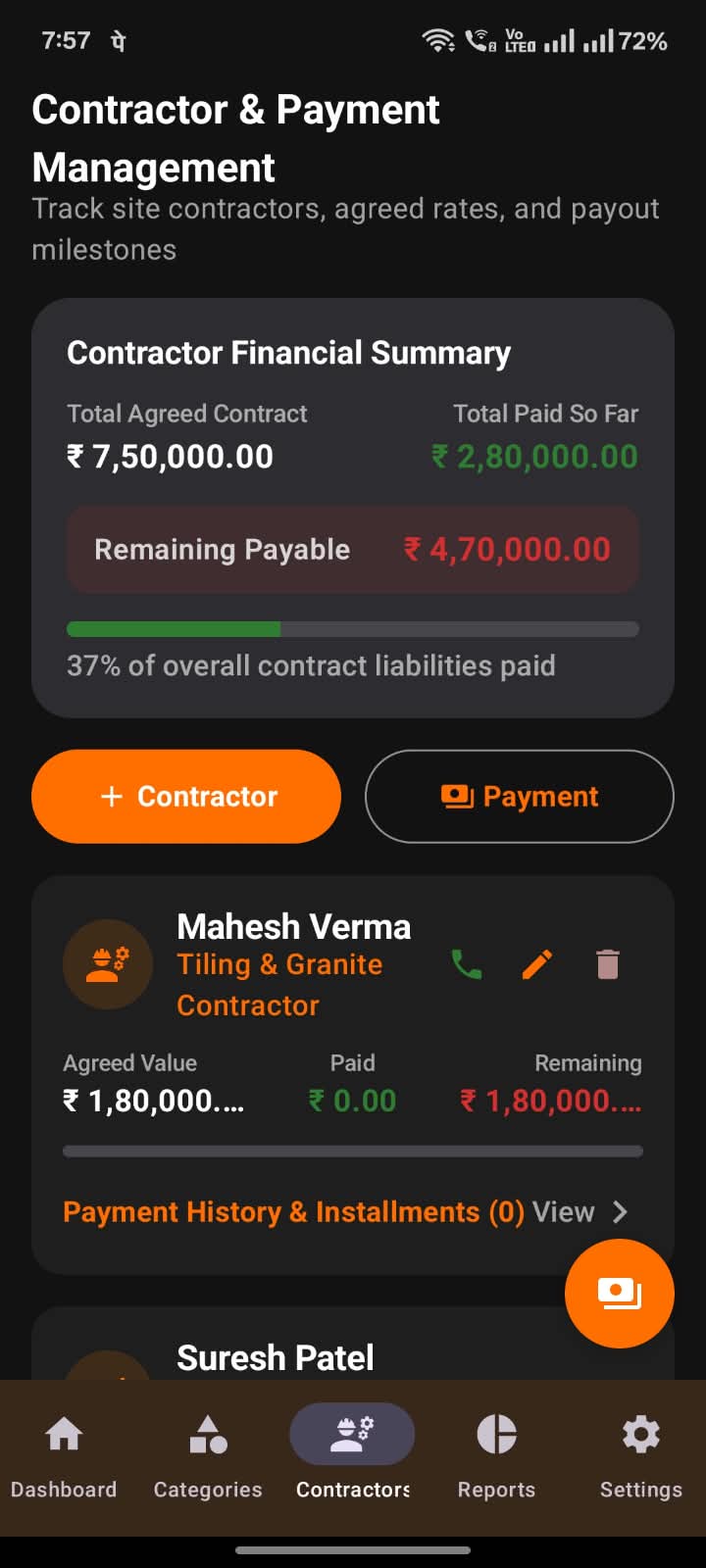
Step 4: Track Contractor & Worker Advances

Avoid payment disputes with trade contractors (Masons, Plumbers, Electricians, Painters).

  • Go to the Contractors tab and tap + Add Contractor.
  • Enter Trade Specialty (e.g. Masonry / Raj Mistri) and the Total Agreed Contract Rate (e.g. ₹1,50,000).
  • Every time you issue a partial advance or weekly wage payment, tap Log Payment.
  • BrickTrack automatically subtracts paid installments and shows the exact Remaining Due Balance.
💡 Pro Tip: Digital vouchers prevent double-payment confusion when multiple family members manage site cash payouts.

चरण 4: ठेकेदार और राजमिस्त्री का हिसाब रखें

ठेकेदारों (राजमिस्त्री, प्लंबर, इलेक्ट्रिशियन, पेंटर) के साथ भुगतान विवाद से बचें।

  • Contractors टैब पर जाएं और + Add Contractor पर टैप करें।
  • काम का प्रकार (जैसे राजमिस्त्री) और कुल तय ठेका राशि (उदा. ₹1,50,000) दर्ज करें।
  • जब भी आप एडवांस या साप्ताहिक भुगतान दें, Log Payment पर टैप करें।
  • ब्रिकट्रैक दिए गए एडवांस को घटाकर बची हुई शेष राशि (Remaining Due) तुरंत दिखाता है।
💡 सलाह: डिजिटल वाउचर से दोहरे भुगतान का भ्रम खत्म हो जाता है।
BrickTrack Contractor Payments Screen
05

Step 5: Export Executive A4 PDF Statements

Generate styled PDF reports ready to present to bank loan officers, architects, or family co-owners.

  • Navigate to the Reports tab.
  • Select your desired Date Filter (Current Month, Full Construction Period, or Specific Material).
  • Tap Export A4 PDF.
  • Tap Share via WhatsApp to instantly send the formatted PDF report to any mobile contact.
💡 Pro Tip: PDF statements include full itemized tables, contractor ledgers, and budget variance summaries.

चरण 5: A4 PDF रिपोर्ट बनाएं और व्हाट्सएप पर शेयर करें

बैंक होम लोन, आर्किटेक्ट या परिवार के सदस्यों के लिए पेशेवर पीडीएफ रिपोर्ट तैयार करें।

  • Reports टैब पर जाएं।
  • समय अवधि या सामग्री फ़िल्टर चुनें।
  • Export A4 PDF पर टैप करें।
  • रिपोर्ट को व्हाट्सएप, ईमेल या टेलीग्राम पर तुरंत भेजने के लिए Share via WhatsApp दबाएं।
💡 सलाह: पीडीएफ रिपोर्ट में सामग्री वार खर्च और ठेकेदारों का पूरा लेजर शामिल होता है।
BrickTrack A4 PDF Document Screen
06

Step 6: App Preferences, Cloud Sync & Language

Protect your construction financial database across device upgrades and switch languages effortlessly.

  • Go to Settings / Preferences inside the app.
  • Sign in with your personal Google account to enable auto-sync to your Google Drive.
  • To switch app language, tap Language Selection → English / हिंदी for instant localized app UI.
💡 Pro Tip: Backups are saved to your personal Google Drive account only — BrickTrack servers never store your financial data.

चरण 6: ऐप प्राथमिकताएं, क्लाउड बैकअप और भाषा

नया फोन बदलने पर भी अपना डेटा सुरक्षित रखें और अपनी सुविधानुसार भाषा बदलें।

  • ऐप के अंदर Settings / Preferences पर जाएं।
  • अपने गूगल खाते से साइन इन करें ताकि बैकअप सीधे आपके गूगल ड्राइव में सुरक्षित रहे।
  • भाषा बदलने के लिए Language Selection → English / हिंदी चुनें।
💡 सलाह: बैकअप केवल आपके निजी गूगल ड्राइव में सहेजा जाता है, हम आपका डेटा किसी सर्वर पर नहीं रखते।
BrickTrack Preferences Screen